Displays
Every display, its own strip
Each display scrolls and keeps focus on its own. Swipe past the end and you carry on to the next one.
Your windows, side by side on a strip that runs past the edges of your screen. Nothing overlaps. Nothing ever shrinks.
$15 once · 7-day free trial · macOS 14 Sonoma or later · Apple silicon
Every window gets a full-height column. The strip runs past both edges of the screen, and the screen slides along it.
One to one with your trackpad, with no lag. Or hold ⌃⌥ and tap →.
It slides in beside the one you're in, and the rest of the strip moves along.
⌃⌥R cycles ⅓, ½ and ⅔. ⌃⌥F fills the screen, and puts it back.
It floats up while the strip moves. Jump with ⌃⌥1–9, or click a tile.
This is the real thing, built with the app's own sizes and spring. Click it, then use the arrow keys, R and F, or swipe sideways with two fingers.
 9:41
9:41Try it: ← →, R and F, or swipe sideways with two fingers.
Every map below was drawn by the app itself. Pick the one you like in Settings, and hold ⌃⌥ to keep it up.
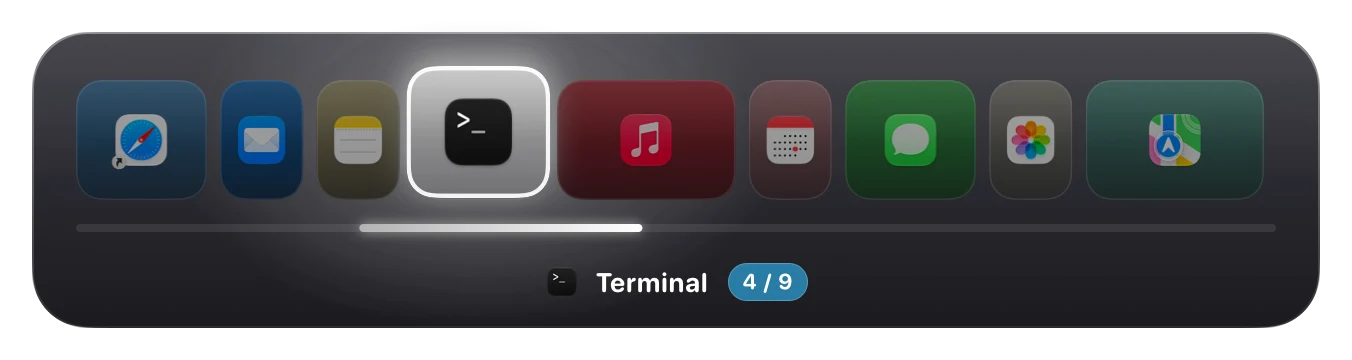
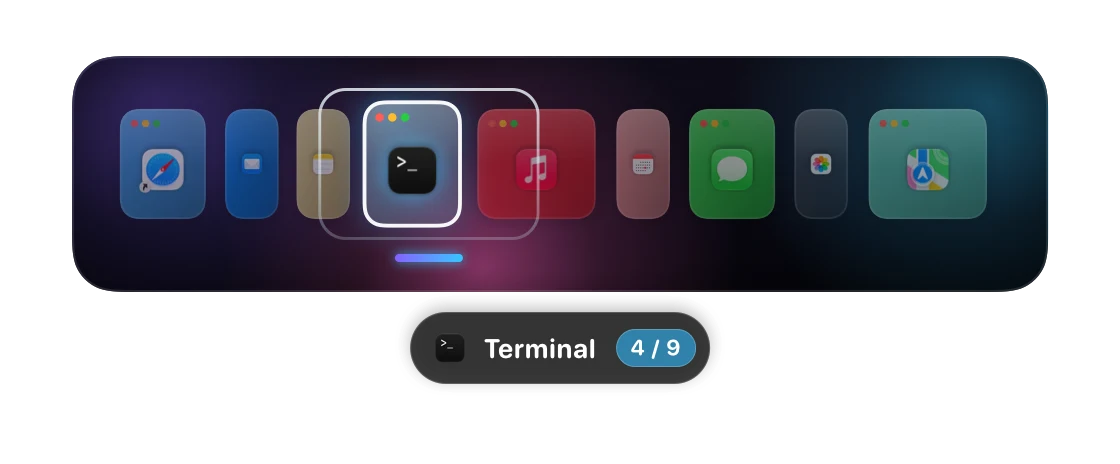
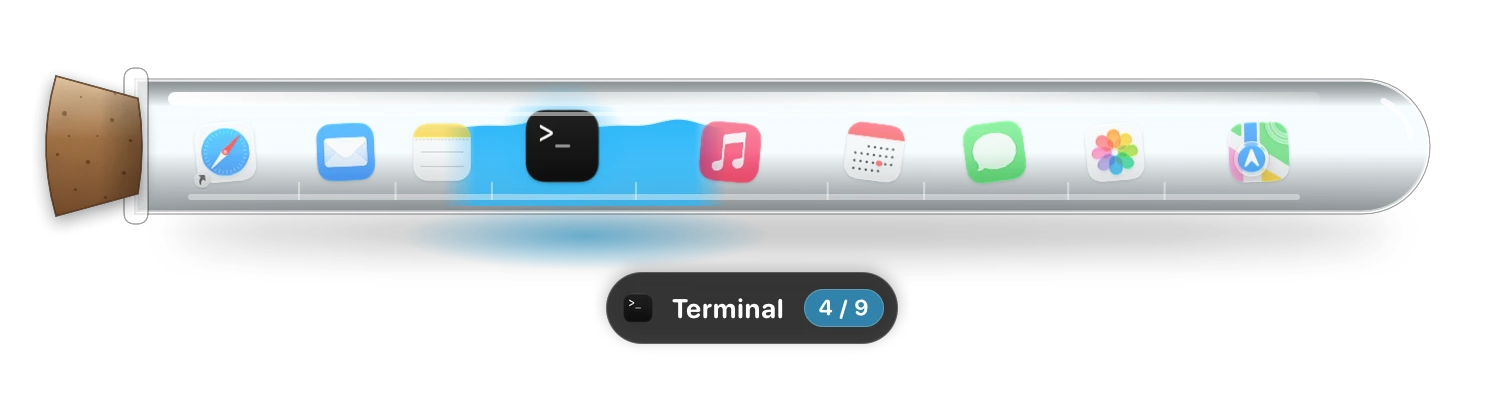
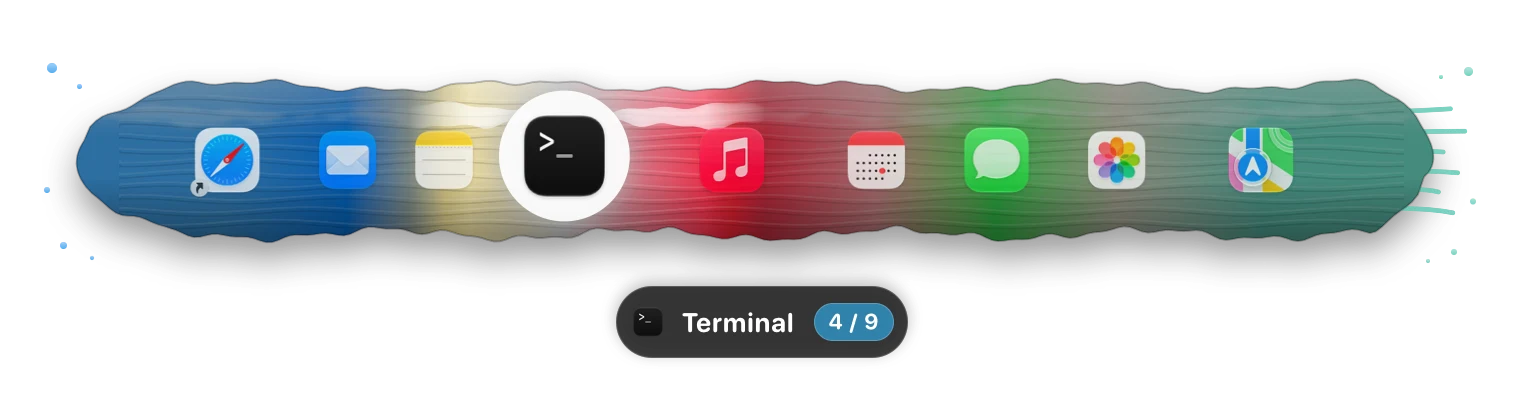
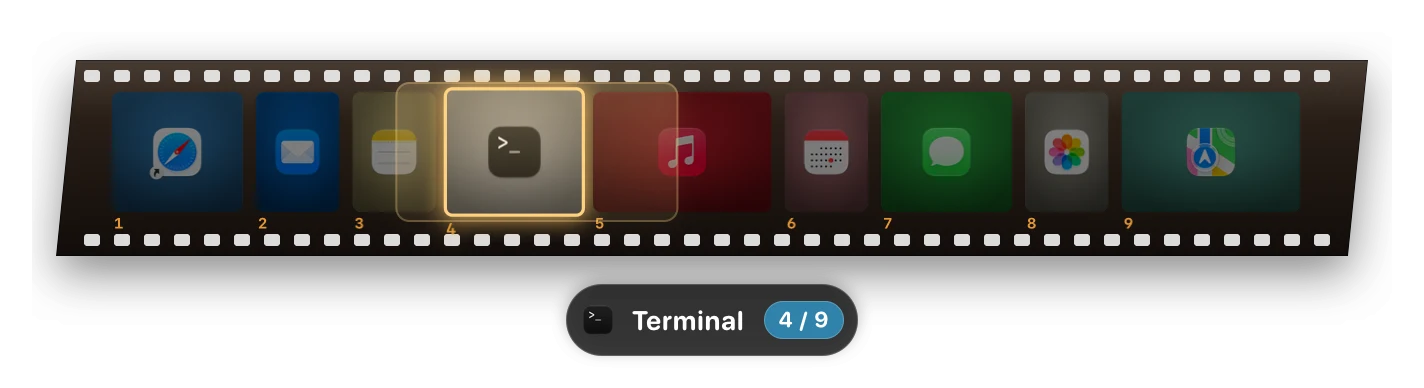
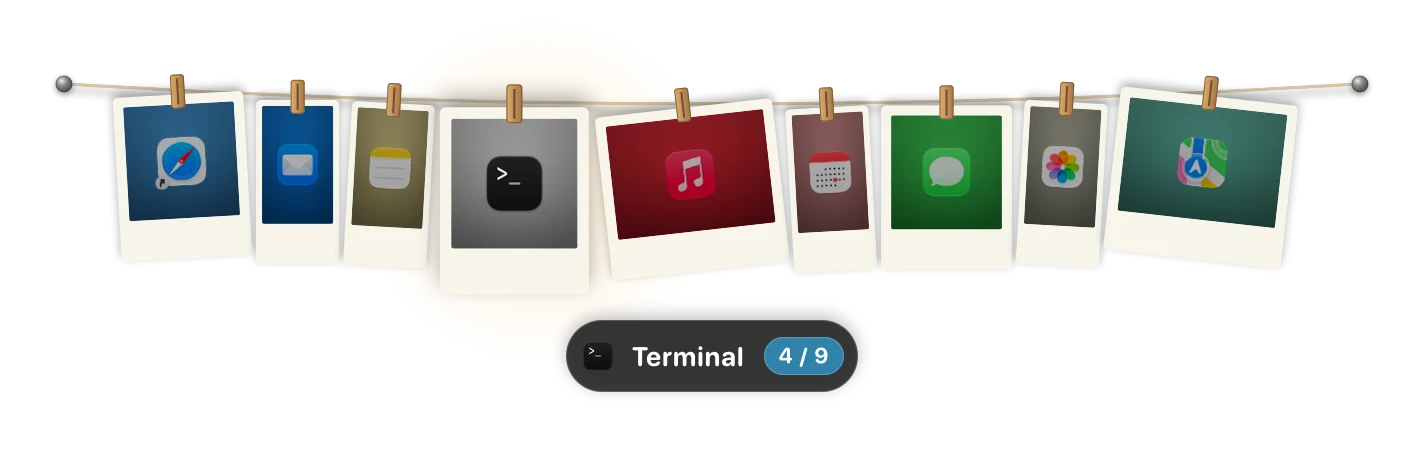
Every move is a shortcut, held with ⌃⌥. Change any of them in Settings. They follow your layout, so they work the same on AZERTY, QWERTZ and Dvorak.
Moving a window on macOS means asking its app to move it, one message at a time. A busy app can be slow to answer, so Ribbon is built around never waiting on one.
Each display scrolls and keeps focus on its own. Swipe past the end and you carry on to the next one.
Some apps always float. Others go to the same place every time, even after a restart.
Pull an edge and it snaps to ⅓, ½ or ⅔. Drop a window by its title bar wherever it should go.
Dialogs, picture in picture and fixed-size windows float above the strip. ⌃⌥` brings back a stray.
An outline follows the window you're in, and the rest dim a little once the strip comes to rest.
Quit Ribbon and every window goes back where it was. Start it again and your strip returns as you left it.
Every action has a ribbon:// link and a ribbon command, and there are Raycast scripts too.
Focus follows mouse, and the pointer can follow you to the window you move to. Both off until you want them.
 Lifetime licence
No subscription, ever. Try it free for 7 days, with no account and no card.
If you've used PaperWM or niri on Linux, a tiler like AeroSpace or yabai, or snapping apps like Rectangle, here's how Ribbon compares. There's more in the guides.
Ribbon is a scrolling window manager for macOS. Instead of overlapping, or splitting the screen into smaller and smaller tiles, every window gets its own full-height column on one long strip that runs past the edges of the screen. You move along it with a three-finger swipe or ⌃⌥ ← →, and the screen scrolls to the window you want.
Snapping apps like Rectangle and Magnet place windows in halves and thirds of one screen, and Stage Manager hides most of them in a pile. Ribbon never shares the screen out: opening a window adds a column to the strip, and nothing else changes size. It's the idea behind PaperWM and niri on Linux, built natively for the Mac.
It's the same idea, built natively for macOS. PaperWM (for GNOME) and niri (a Wayland compositor) can't run on a Mac, so Ribbon recreates their scrolling layout as a Mac app, with trackpad swipes and a settings window instead of config files. More in PaperWM for Mac and niri for Mac.
Those are tiling window managers: they split the screen between your windows, so each one gets smaller as you open more. Ribbon gives every window its own full-height column and lets the strip run past the screen's edges, so nothing shrinks. It also needs no config file and no changes to System Integrity Protection. See Ribbon vs AeroSpace and Ribbon vs yabai.
macOS 14 Sonoma or later, on a Mac with Apple silicon. A trackpad is optional: everything also works from the keyboard.
macOS only lets an app move and resize other apps' windows through the Accessibility API, so Ribbon asks for it once, in System Settings → Privacy & Security → Accessibility. It uses it to read where windows are, how big they are and what they're called, and to move them. It never reads what's inside a window, and nothing leaves your Mac.
No. Ribbon moves windows from one queue per app, only touches the two or three windows that are actually on screen while the strip scrolls, and sleeps whenever nothing is moving. Its own benchmark scrolls the strip back and forth and measures every frame: 95% of frames need about a millisecond of work or less.
Mostly, with a little setup that Ribbon walks you through. It warns if a three-finger swipe is also switching full-screen apps, or if macOS's own edge tiling is on, and shows where to turn them off. Full-screen, minimized and hidden (⌘H) windows keep their place on the strip. In Mission Control, turning on "Group windows by application" keeps the overview tidy.
Dialogs, fixed-size windows like Calculator, and windows that stay on top (picture in picture, a meeting's compact view) are left floating. You can float any window with ⌃⌥T, set an app to always float, or give it a fixed place on the strip. If a floating window ends up hidden behind the strip, ⌃⌥` brings it forward.
Yes. Every display has its own strip, its own focus and its own scroll. Swiping or ⌃⌥ → past the end carries on to the next display, ⌃⌥N sends a window there, and you can switch Ribbon off for any display.
They go back where they were before Ribbon arranged them. When Ribbon starts again, it puts the strip back in the order and widths you left it.
$15, once. No subscription. Try it free for 7 days first, with every feature and no account or card.
A window manager needs the Accessibility API to move other apps' windows, and the App Store's sandbox doesn't allow that. Ribbon is signed with an Apple Developer ID, so it opens like any other app.
macOS 14 Sonoma or later · Apple silicon · $15 once